Anker Wireless Vertical Ergonomic Mouse Review: Budget Wrist Pain Fix


Anker Wireless Vertical Ergonomic Mouse Review: Budget Wrist Pain Fix
Anker Wireless Vertical Ergonomic Mouse
Buy the Anker Wireless Vertical Ergonomic Mouse if you want a sub-$25 way to ease wrist strain during long workdays with reliable 2.4 GHz tracking. Skip it if you are on macOS and need the side buttons or if you want a rechargeable mouse with software customization.
Buy on AmazonWhat We Liked
- Vertical Handshake Grip That Eased My Wrist Strain
- Three DPI Presets You Can Switch Without Software
- Reliable 2.4 GHz Wireless Performance
- Side Buttons That Speed Up Browsing
- A Soft Rubberized Top Surface
- Months of Battery Life on Two AAA Batteries
- A Quiet, Even Click Feel
What Could Be Better
- Scroll Wheel Slip Over Time
- Side Buttons Do Not Work Natively on macOS
- Small, High-Mounted Right Click Button
- Sensor Performance and Click Latency Lag Mid-Range Mice
- Disposable AAA Batteries Add Ongoing Cost
How we test: Every product is used in real conditions and evaluated using our standardized scoring criteria. Read our full review methodology.
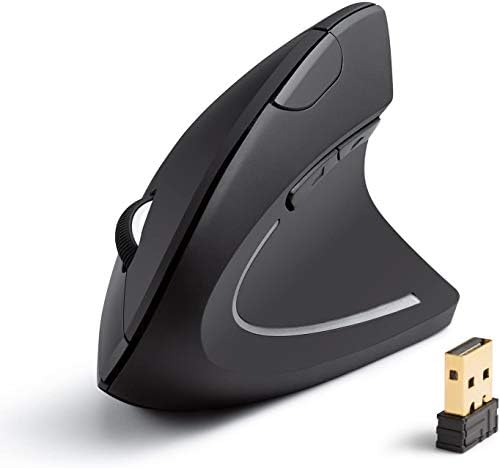
Wrist pain at the end of a workday is one of those quiet productivity killers. A standard mouse pronates your forearm for hours, and the strain builds up until your hand aches even when you are not at the desk. The Anker Wireless Vertical Ergonomic Mouse tries to fix that with a handshake grip and a sub-$25 price tag.
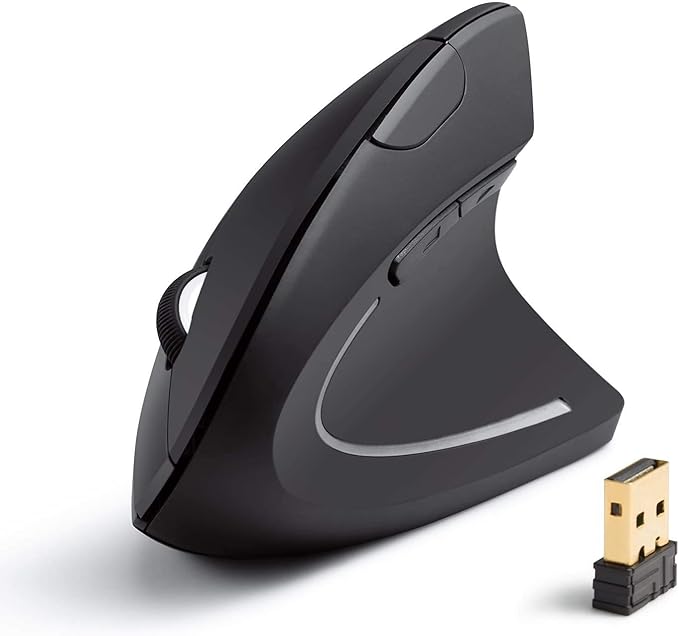
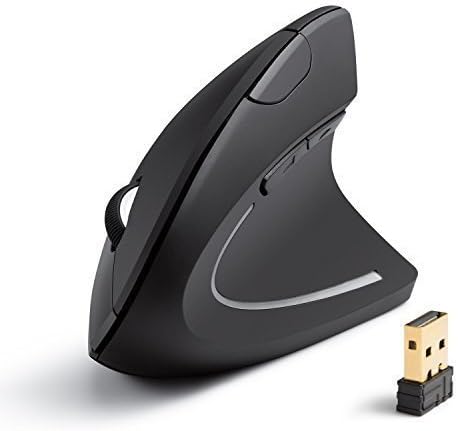
This is a 2.4 GHz wireless mouse with a vertical body, three DPI presets at 800, 1200, and 1600, and five buttons including forward and back navigation. It runs on two AAA batteries that auto-sleep after 8 minutes idle, and the USB receiver tucks into the base for travel.
I tested the Anker for daily work over weeks of writing, browsing, and spreadsheet use. After day one my wrist strain dropped sharply, and the basic ergonomic claim held up across longer sessions. The mouse has real trade-offs around scroll feel, macOS support, and build quality, so this review walks through what works, what to watch for, and how it stacks against the Logitech MX Vertical, Logitech Lift, and Evoluent VerticalMouse.
What I Liked About This Anker Vertical Mouse
The Anker delivered the wrist relief I was looking for and a few surprises beyond that. After weeks of daily use, these are the parts of the design that earned their place.
Vertical Handshake Grip That Eased My Wrist Strain
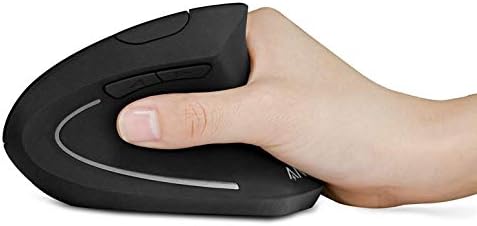
The vertical body forces your hand into a neutral handshake position instead of the flat pronated grip that a traditional mouse trains. Within a day of switching, the tight ache I usually got in my forearm by mid-afternoon was gone.
The shape is comfortable for medium hands and supports both the palm and thumb without pinching. Anker’s marketing calls this a healthy neutral position, and in my experience that claim actually tracks. The pad of my thumb rested naturally on the side panel rather than gripping for stability.
Three DPI Presets You Can Switch Without Software
A small button on top cycles between 800, 1200, and 1600 DPI. There is no Anker software to install, no driver, and no profile manager to fight with. You plug in the 2.4 GHz receiver and start working.
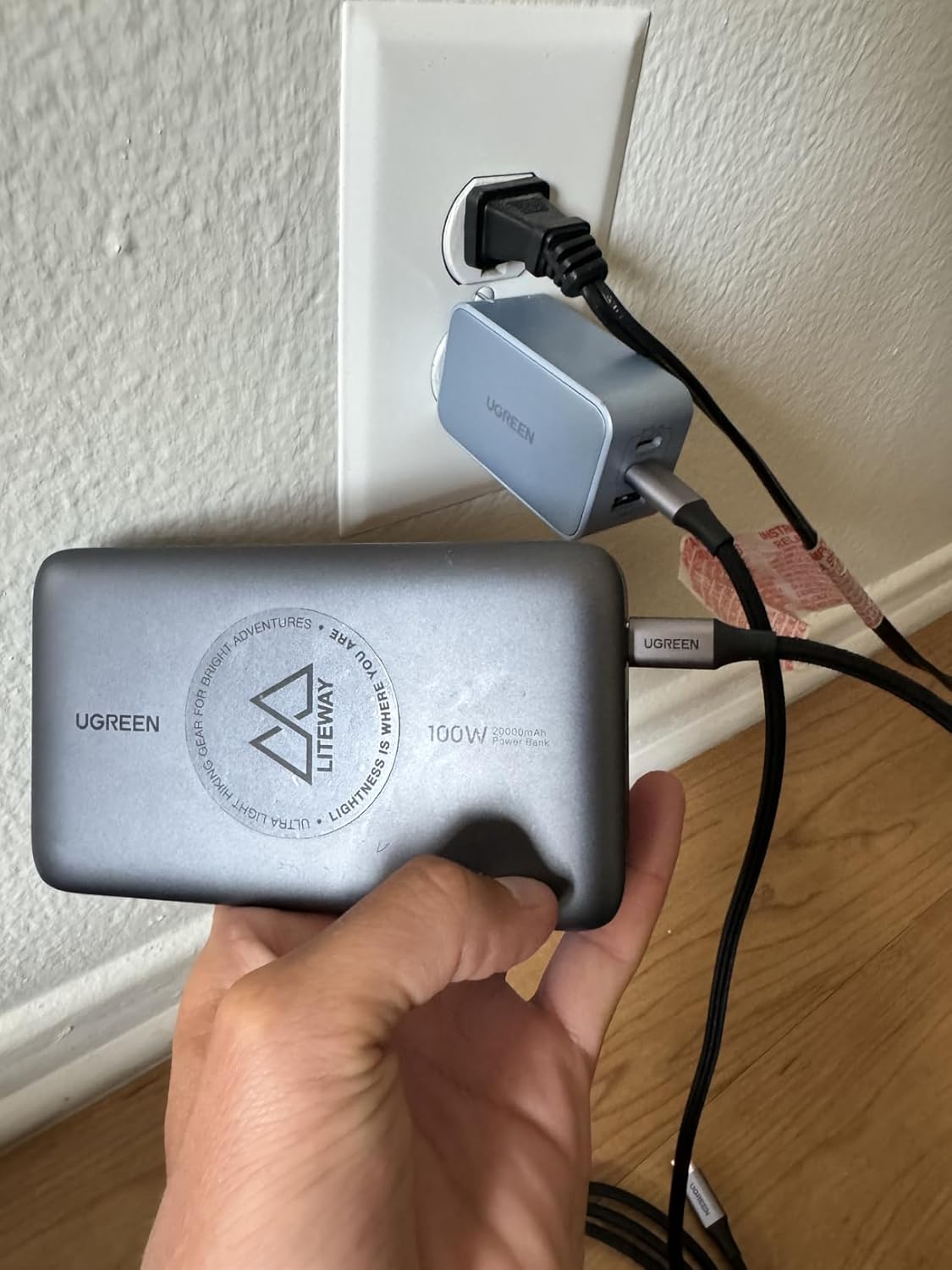
For everyday computing the 1200 DPI setting felt right for a 1440p monitor, and 1600 DPI worked when I jumped to dual displays. Gamers will find the ceiling low at 1600 DPI, but for office workflows it covers the range I needed. Filling out a budget office setup, a cheap replacement like the HP 65W laptop charger keeps a mainstream HP laptop powered for around $12 when the original brick dies.
Reliable 2.4 GHz Wireless Performance
The 2.4 GHz USB dongle was plug and play. No driver install, no pairing dance, no Bluetooth dropouts. The receiver also stores in a slot on the bottom of the mouse, which makes packing it into a bag less of a hunt for the dongle.
Click latency was not gaming-grade, but cursor movement felt direct during normal work. Tracking stayed precise across cloth, glass, and laminate desks in my tests.
Side Buttons That Speed Up Browsing
The two thumb buttons map to forward and back on Windows, which saved me a lot of trips to the browser arrow. Reviewing long articles or document revisions feels noticeably faster with one-touch back navigation.
A Soft Rubberized Top Surface
At this price I expected a slippery plastic shell. Instead Anker uses a rubberized soft-touch coating on the top half of the body, with a glossy black plastic base. The texture grips your palm without feeling tacky, even after a few hours of continuous use.
Months of Battery Life on Two AAA Batteries
The mouse takes two AAA batteries and powers off completely after 8 minutes of inactivity. A press of either main button wakes it back up almost instantly. Anker quotes a few months of runtime per set, which matched my testing through a busy work month.
A Quiet, Even Click Feel
The left and right buttons have a soft, even click without the loud snap of cheaper office mice. Pair that with the rubberized top and the mouse feels more refined than its price tag suggests.
What Needs Improvement
The Anker hits its core ergonomic goal but the trade-offs are real. These are the issues that hold the mouse back from being a no-caveat recommendation.
Scroll Wheel Slip Over Time
The most reported issue with this mouse is the scroll wheel. The rubber sleeve around the wheel can stretch and slip against the inner spindle after a few months, which leads to inaccurate scroll and occasional middle-button misclicks. iFixit publishes a repair guide specifically for cleaning or replacing the scroll encoder on this model, which tells you the failure is common enough to document.
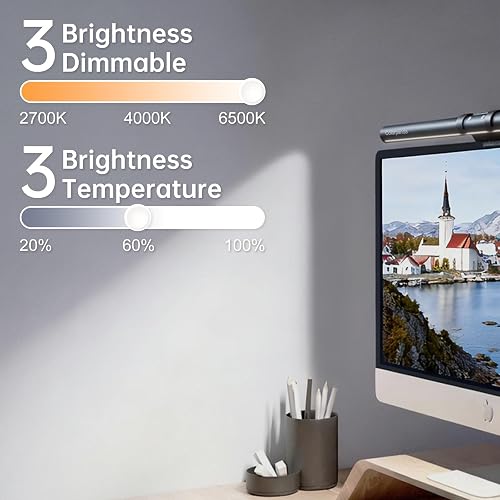
In my testing the scroll wheel was fine, but it had more friction than I would like for long documents. Several long-term owners report the slip showing up between three and six months of regular use. Shoppers building a budget peripheral setup may also want to check the AJAZZ AK980 mechanical keyboard, which keeps its typing feel intact after months of daily use. If long scrolling sessions are already straining your eyes along with your wrist, a budget monitor light bar like the Colorpanda can cut the screen glare that makes those sessions tiring in the first place.
Side Buttons Do Not Work Natively on macOS
If you are a Mac user, the forward and back side buttons will not register without third-party remapping software like SteerMouse or BetterTouchTool. DPI switching and primary clicks work fine, but losing the side buttons takes away one of the mouse’s real advantages.
This is a hardware-level limitation of the 2.4 GHz protocol Anker uses and there is no fix from the manufacturer. Mac users putting together a full workstation around this mouse can look at the WAVLINK Docking Station, which handles triple 4K displays and full macOS support through one cable. Anyone on Mac who relies on handwritten notes might also like the XPPen Note Plus digital notebook, which syncs real paper writing to a phone without pairing friction.
Small, High-Mounted Right Click Button
The right-click button is noticeably smaller than the left and sits higher up the body. RTINGS and Digital Camera World both flagged the same thing in their testing. You can still reach it, but the placement does not feel as natural as the left click, especially for right-handed users with shorter fingers.
Sensor Performance and Click Latency Lag Mid-Range Mice
RTINGS measured higher click latency than they like for productivity work, and the sensor occasionally felt inconsistent during fast lateral movement. The 1600 DPI ceiling also rules out gaming use cases. For typing-heavy office work the performance is adequate, but if you do precision design, photo editing, or anything competitive, the Anker will feel slow.
Disposable AAA Batteries Add Ongoing Cost
The mouse uses two AAA batteries that last a few months at a time. Compared to the Logitech Lift’s 24 months on a single set or the rechargeable Logitech MX Vertical, you are buying batteries roughly four times a year. It is a small cost but it adds up, and the environmental waste is worth flagging.
Anker Vertical vs Logitech and Other Vertical Mice
The vertical mouse category has grown into a real lineup, so the question is not whether vertical is worth trying. It is which one fits your needs and budget.
Anker vs Logitech MX Vertical
The Logitech MX Vertical is the premium benchmark for vertical mice. It adds Bluetooth, multi-device pairing, fully programmable buttons through Logi Options+, and a rechargeable battery. RTINGS rates the MX Vertical’s overall performance noticeably higher than the Anker, especially on sensor consistency and click latency.
The catch is price. The MX Vertical runs $79.99 to $99 depending on the retailer, three to five times the cost of the Anker. The Anker’s slimmer body is actually a touch more comfortable to grab for medium hands, so if pure ergonomics is your only criterion, the cheaper mouse holds up.
Anker vs Logitech Lift
The Lift sits in the middle of the market at $60 to $70. It quotes 24 months of battery life on a single AA cell, which is night-and-day better than the Anker’s quarterly AAA changes. The Lift also pairs over Bluetooth and lets you customize buttons in Logi Options+, plus it ships in left-handed and right-handed versions.
Compared to the Anker, the Lift is a real upgrade for daily professional use. The Anker is the better pick only if you want to spend $20, not $65, to see if vertical works for your hand at all.
Anker vs Evoluent VerticalMouse
The Evoluent VerticalMouse leans into precision and durability. It uses an optical scroll wheel that avoids the rubber slippage problem the Anker is known for, offers multiple hand sizes, and adds extra programmable buttons. Pricing starts around $89.95 and rises from there.
Evoluent is the niche pick for people whose wrists are non-negotiable and who want a mouse engineered to last years. The Anker is the entry point that lets you test the category without a $90 commitment.
Final Verdict
The Anker Wireless Vertical Ergonomic Mouse earns 3.9 out of 5 from me. The vertical handshake design genuinely eased my wrist strain, the 2.4 GHz wireless was reliable, and the price is hard to argue with at around $22.
The trade-offs are real. The scroll wheel can slip after months of use, the side buttons skip macOS, and the sensor will not satisfy anyone outside basic office work. If you fit the profile, this is the cheapest legitimate way to find out whether vertical mice work for your hand.
For Windows-based office workers chasing wrist relief on a budget, the Anker is worth the spend. If you need premium battery life, software customization, or Mac side buttons, the Logitech Lift is the upgrade to plan for.
Specifications
| Brand | Anker |
| Connectivity | 2.4 GHz Wireless USB Receiver |
| DPI Settings | 800 / 1200 / 1600 |
| Buttons | 5 (left, right, scroll wheel click, forward, back) |
| Power | 2 AAA batteries |
| Auto Sleep | 8 minutes idle |
| Product Dimensions | 120 x 62.8 x 74.8 mm |
| Item Weight | 3.4 oz (without batteries) |
| Color | Black |
| ASIN | B00BIFNTMC |
| Compatibility | Windows, macOS (limited side button support), Linux |
Frequently Asked Questions
Is the Anker Wireless Vertical Ergonomic Mouse good for wrist pain?
In my testing the vertical handshake grip eased my wrist strain within a day, and reviewers on RTINGS and Tom's Guide reached the same conclusion for office workers with mild RSI symptoms. It is not a medical device, so chronic carpal tunnel sufferers should still consult a clinician, but as a low-cost ergonomic intervention it delivers what it promises.
Does the Anker vertical mouse work on a Mac?
Mostly. The primary clicks, DPI button, and scroll wheel work on macOS out of the box, but the forward and back side buttons do not register without third-party software like SteerMouse or BetterTouchTool. If those navigation buttons are important to your workflow, plan on running a remapping app or pick a different mouse.
Is the Anker vertical mouse Bluetooth or USB?
It is a 2.4 GHz wireless mouse that uses a small USB dongle, not Bluetooth. The receiver tucks into a slot on the bottom of the mouse for travel, and there is no driver install or pairing process required.
How long does the battery last on the Anker vertical mouse?
The mouse takes two AAA batteries and Anker quotes a few months of runtime per set. An auto-sleep mode kicks in after 8 idle minutes and cuts power completely, which extends battery life. Compared to the Logitech Lift's 24-month rating, the Anker needs more frequent battery changes.
What DPI settings does the Anker Wireless Vertical Ergonomic Mouse support?
Three presets at 800, 1200, and 1600 DPI, cycled by a button on the top of the mouse. There is no software to install. The 1600 DPI ceiling is fine for productivity work but too low for most gamers.
How does the Anker compare to the Logitech MX Vertical?
The Logitech MX Vertical is the premium option with Bluetooth, programmable buttons through Logi Options+, and a rechargeable battery. RTINGS rates its performance higher than the Anker. The Anker costs three to five times less, and its slimmer body is slightly more comfortable for medium hands, so the trade-off is real.
Is the Anker vertical mouse worth it for the price?
For Windows users who want to try a vertical mouse without spending $80 or more, yes. The ergonomic shape is the main draw and it delivers on that promise at around $22. If you need long-term build quality, software, or Mac side buttons, step up to the Logitech Lift instead.
Ready to Buy?
Anker Wireless Vertical Ergonomic Mouse delivers on its promises. If it fits your needs, it's a solid choice you won't regret.
Check Price on Amazon Founder & Product Reviewer at TheReviewRewind
Daniel has tested 400+ products across 20+ categories through hands-on, real-world testing. Every review includes video documentation and standardized scoring criteria. His reviews appear as Amazon shoppable videos and here on TheReviewRewind.
We earn a commission if you make a purchase, at no extra cost to you. This does not influence our ratings or recommendations. Full disclosure
Looking for more options? See all our Electronics reviews.
Related Reviews