iVANKY FusionDock Pro 2 Review: 20-in-1 DisplayLink Dock for Triple 4K Monitors


iVANKY FusionDock Pro 2 Review: 20-in-1 DisplayLink Dock for Triple 4K Monitors
iVANKY FusionDock Pro 2
Buy if you need triple 4K displays and extensive port connectivity from a single USB-C cable on any MacBook. Skip if you need UHS-II SD card speeds or prefer a driver-free Thunderbolt solution.
Buy on AmazonWhat We Liked
- Triple 4K Displays From a Single Cable
- 20 Ports of Connectivity
- 2.5 Gbps Ethernet
- Fast Charging With 180W Adapter
- Solid Metal Build
- Cross-Platform Compatibility
What Could Be Better
- UHS-I SD Card Speeds Only with 104MB
- DisplayLink Driver Required
- Large Power Brick
- 96W Charging Falls Slightly Short
How we test: Every product is used in real conditions and evaluated using our standardized scoring criteria. Read our full review methodology.
Can one USB-C cable replace every adapter on your desk? I tested the iVANKY FusionDock Pro 2 — a 20-in-1 DisplayLink docking station — to find out if triple 4K monitors, fast charging, and 2.5 Gbps Ethernet can all run through a single connection.
I plugged this dock into my MacBook Air M4 and connected two external 4K monitors, a 4K webcam, Stream Deck Mini, Blue Yeti mic, Focusrite Scarlett audio interface, an SD card, and an external SSD. I then rendered video in DaVinci Resolve and Final Cut Pro and streamed with multiple webcams. The iVANKY FusionDock Pro 2 handled it all without power or bandwidth hiccups.
At $299.99, the FusionDock Pro 2 targets creators, developers, and remote workers who need triple 4K displays without paying Thunderbolt prices. Here is what I found after extensive testing.
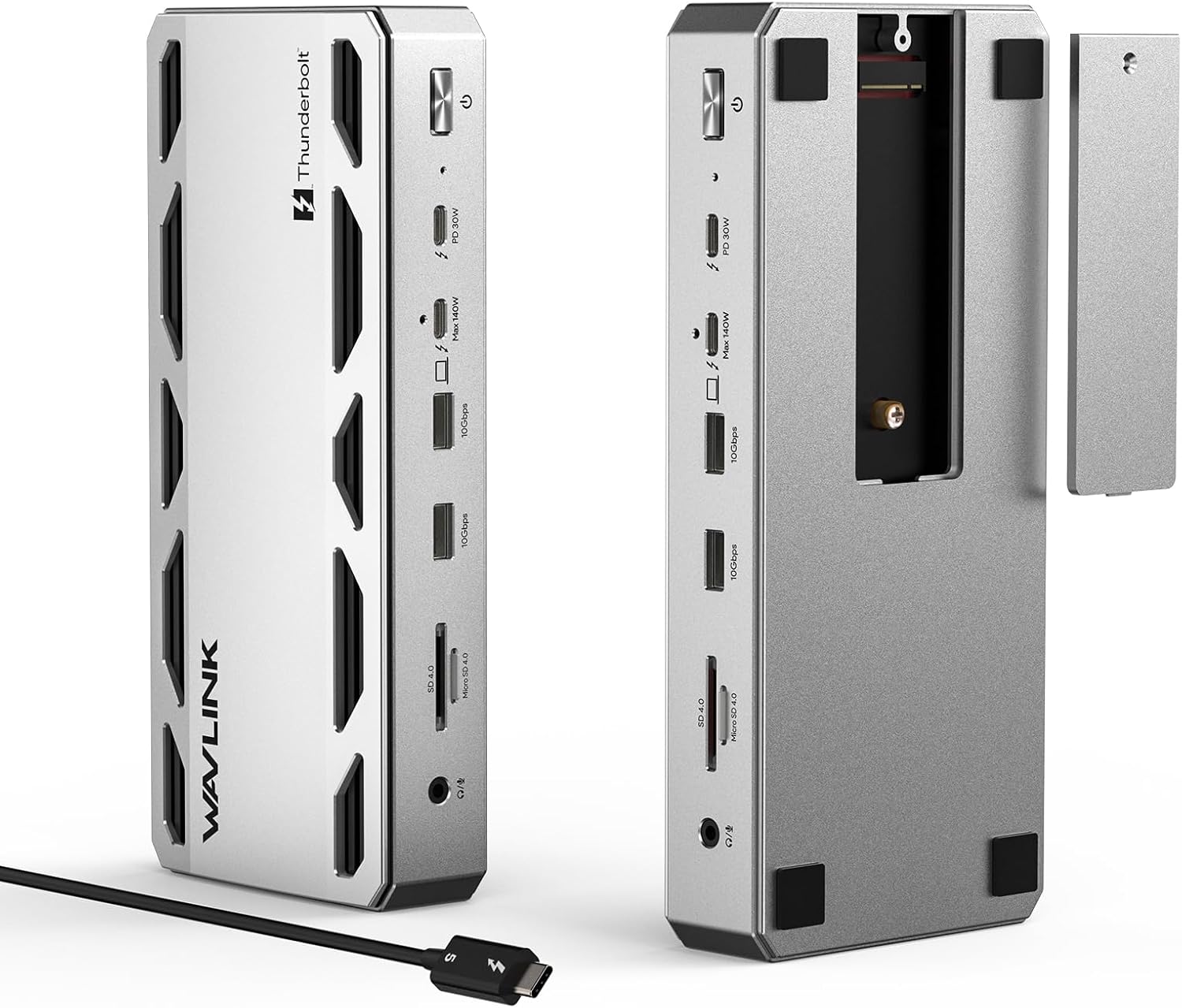
If you are choosing between the iVANKY FusionDock Pro 2 and the WAVLINK Pro Docking Station, see my WAVLINK Pro Docking Station vs iVANKY FusionDock Pro 2 for the side-by-side buying breakdown.
What I Liked
Triple 4K Displays From a Single Cable
The headline feature of the iVANKY FusionDock Pro 2 is triple 4K@60Hz display support through three HDMI 2.0 ports and two DisplayPort 1.2 outputs. One USB-C cable from the dock connects and charges your laptop while driving all three monitors.
On my MacBook Air M4, I ran three 4K displays at 60Hz simultaneously. The setup process required installing the DisplayLink driver, but once configured, the displays were rock-solid. For anyone who has tried juggling multiple adapters to get extra screens working on a MacBook Air, this is a massive upgrade. If you need a fourth monitor, the WAVLINK Pro Docking Station pushes quad 4K output using the same DisplayLink approach. For a budget alternative that skips DisplayLink entirely, the WAVLINK Laptop Docking Station 3 Monitors delivers triple 4K through native USB-C Alt Mode at a fraction of the cost.
20 Ports of Connectivity
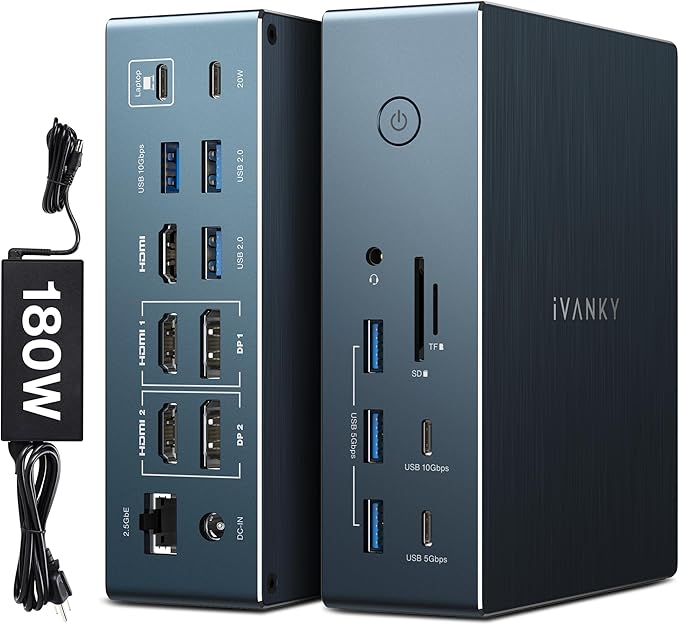
The port selection on the FusionDock Pro 2 is extensive. The front panel has a 3.5mm audio jack, SD and TF card slots, two USB-C ports (one at 10Gbps, one at 5Gbps), and three USB-A 3.2 ports at 10Gbps.
The back adds three HDMI 2.0 ports, two DisplayPort 1.2 outputs, two USB-A 2.0 ports, a 20W USB-C PD port, 2.5 Gbps Ethernet, and the upstream USB-C connection. That is 20 ports total — enough to eliminate every dongle from your desk.
2.5 Gbps Ethernet
The 2.5 Gbps Ethernet port is a standout. Most docking stations in this price range still ship with 1 Gbps connections. During my testing, the faster Ethernet made a noticeable difference for large file transfers across the network and for keeping video calls stable under heavy bandwidth usage.
If your router supports 2.5 Gbps, you will see a genuine improvement over the standard 1 Gbps found on competing docks.
Fast Charging With 180W Adapter
The included 180W power adapter pushes up to 96W–100W through the upstream USB-C port to your laptop. My MacBook Air M4 stayed fully charged through demanding workloads with every peripheral connected. A separate 20W USB-C PD port on the back can charge a phone or tablet simultaneously.
Solid Metal Build
The FusionDock Pro 2 has a sturdy metal chassis that stays planted on the desk during cable swaps. It works vertically or horizontally, and the finish looks good in either orientation. Heat was never an issue during my extended sessions — the metal body dissipates warmth effectively.
Cross-Platform Compatibility
Unlike Thunderbolt-only docks, the FusionDock Pro 2 works across macOS, Windows, and Linux. If you switch between operating systems or share a workspace with someone on a different platform, this dock handles all three without swapping hardware.
What Needs Improvement
UHS-I SD Card Speeds Only
The SD and TF card slots support UHS-I at 104MB/s maximum. If you shoot on cameras that use UHS-II cards, you will not get the full transfer speeds this dock could deliver. Photographers and videographers who ingest footage frequently will feel the bottleneck.
The iVANKY FusionDock Pro 1+ offers UHS-II support at a lower price, so this is a notable trade-off on the Pro 2.
DisplayLink Driver Required
Two of the three HDMI ports and both DisplayPorts require the DisplayLink driver for multi-monitor support. On macOS, the installation asks for screen recording permissions — a step that can raise eyebrows during IT audits in corporate environments.
The driver ran smoothly for me with no performance issues, but the requirement means this is not a plug-and-play solution for triple displays.
Large Power Brick
The 180W power adapter is large enough to notice on your desk or under it. This is standard for adapters at this wattage, but if you are looking for a compact travel setup, the power brick adds significant bulk.
96W Charging Falls Slightly Short
The upstream USB-C port tops out at 96W of power delivery. The competing FusionDock Pro 1+ delivers 100W. The difference is small, but if you are running a 16-inch MacBook Pro under heavy load, those four watts can matter during sustained workloads.
How It Compares
FusionDock Pro 2 vs CalDigit TS5 Plus
The CalDigit TS5 Plus is a Thunderbolt 5 dock with 20 ports and 10 Gbps Ethernet — faster networking than the Pro 2’s 2.5 Gbps. It supports native multi-display output without DisplayLink drivers.
The trade-off is price. The TS5 Plus costs significantly more and requires a Thunderbolt-equipped Mac. If you have a MacBook Air or a Windows laptop without Thunderbolt, the CalDigit is not an option. The FusionDock Pro 2 works with any USB-C laptop at a fraction of the cost.
FusionDock Pro 2 vs FusionDock Pro 1+
The iVANKY FusionDock Pro 1+ is priced at $180 — roughly $120 less than the Pro 2. It includes UHS-II SD card support and a smaller power brick. However, it maxes out at dual monitors.
Choose the Pro 1+ if you only need two external displays and faster card transfers. Go with the FusionDock Pro 2 if triple 4K monitors and 20 ports of connectivity are non-negotiable.
FusionDock Pro 2 vs FusionDock Max 1
The iVANKY FusionDock Max 1 is a Thunderbolt 4 dock supporting up to four displays at 6K@60Hz with native output — no DisplayLink needed. It also has UHS-II card readers. At $440, it is the priciest option in the iVANKY lineup.
The Max 1 is the better pick for MacBook Pro users with Thunderbolt ports who want driver-free multi-display. The Pro 2 wins on cross-platform support, total port count, and price.
Final Verdict
The iVANKY FusionDock Pro 2 earns a 3.7 out of 5. It delivers on its core promise: triple 4K displays, 20 ports, and reliable charging from a single USB-C cable — all for $299.99.
The UHS-I card reader and the DisplayLink driver requirement hold it back from a higher score. If those trade-offs do not affect your workflow, this dock offers exceptional value for multi-monitor setups on any USB-C laptop.
For creators, developers, and remote workers who need to expand their workspace without paying Thunderbolt prices, the FusionDock Pro 2 is a strong pick.
Specifications
| Brand | IVANKY |
| Color | Black/White |
| Hardware Interface | 3.5mm Audio, DisplayPort, Ethernet, HDMI, MicroSD, USB 3.1 Type C, USB 3.2 Gen 2 |
| Compatible Devices | Mac Mini, MacBook Air, MacBook Pro |
| Total USB Ports | 9 |
| Number of Ports | 20 |
| Item Weight | 1.9 Kilograms |
| Total HDMI Ports | 3 |
| Wattage | 180 |
| Manufacturer | Shenzhen Velocity Technology Innovations Co., Ltd. |
| Connectivity Technology | USB-C, DisplayLink |
| Display Resolution | 4K@60Hz |
| Max Displays | 3 |
| Ethernet Speed | 2.5 Gbps |
| Power Delivery | 96W-100W laptop charging |
| Power Adapter | 180W |
| SD Card | SD/TF 3.0 (UHS-I, 104MB/s) |
| DisplayPort Version | 1.2 |
| HDMI Version | 2.0 |
Frequently Asked Questions
Does the iVANKY FusionDock Pro 2 require a driver?
Yes. The DisplayLink driver is needed for HDMI ports 2 and 3 and both DisplayPort outputs. HDMI 1 connects natively without a driver. On macOS, the driver requires screen recording permission to function.
Can the iVANKY FusionDock Pro 2 run triple 4K monitors on a MacBook Air?
Yes. With the DisplayLink driver installed, the FusionDock Pro 2 supports triple 4K@60Hz displays on any MacBook with a USB-C port, including the MacBook Air M1, M2, M3, and M4.
Is the iVANKY FusionDock Pro 2 compatible with Windows and Linux?
Yes. The FusionDock Pro 2 works with macOS, Windows, and Linux. DisplayLink drivers are available for all three operating systems.
How much power does the iVANKY FusionDock Pro 2 deliver to a laptop?
The dock delivers 96W–100W through the upstream USB-C port using the included 180W power adapter. A separate USB-C PD port provides 20W for charging a phone or tablet.
What is the difference between the FusionDock Pro 2 and the FusionDock Max 1?
The FusionDock Max 1 is a Thunderbolt 4 dock with native display output supporting up to four 6K@60Hz displays and UHS-II card readers. The FusionDock Pro 2 uses DisplayLink for triple 4K@60Hz, has 20 ports, costs less, and works with any USB-C laptop — not just Thunderbolt-equipped machines.
Does the iVANKY FusionDock Pro 2 support the SD card UHS-II standard?
No. The SD and TF card slots support UHS-I with a maximum transfer speed of 104MB/s. For UHS-II speeds, consider the iVANKY FusionDock Pro 1+ or the FusionDock Max 1.
Ready to Buy?
iVANKY FusionDock Pro 2 delivers on its promises. If it fits your needs, it's a solid choice you won't regret.
Check Price on Amazon Founder & Product Reviewer at TheReviewRewind
Daniel has tested 400+ products across 20+ categories through hands-on, real-world testing. Every review includes video documentation and standardized scoring criteria. His reviews appear as Amazon shoppable videos and here on TheReviewRewind.
We earn a commission if you make a purchase, at no extra cost to you. This does not influence our ratings or recommendations. Full disclosure
Looking for more options? See all our Computers reviews.
Related Reviews