POLARMETA Wireless Trackpad Review: A $60 Magic Trackpad Alternative for Mac and Windows


POLARMETA Wireless Trackpad Review: A $60 Magic Trackpad Alternative for Mac and Windows
POLARMETA Wireless Trackpad
Buy if you switch between Mac and Windows and want native multi-touch gestures without drivers, or you need peripherals for a new Mac mini and don't want to pay Apple's price. Skip if you already own an Apple Magic Trackpad you like, or you need the lowest possible latency for precision work.
Buy on AmazonWhat We Liked
- Full Native Gestures on Both macOS and Windows
- True Plug and Play With No Drivers or Software
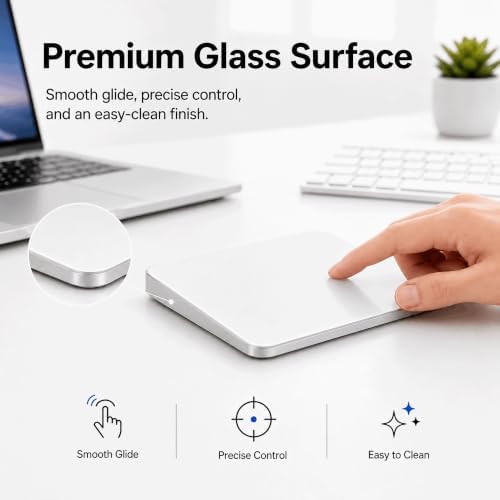
- A Frosted Glass Surface That Feels Smooth and Precise
- A Clickable Surface That Feels Uniform Everywhere
- About a Week of Battery Life With USB-C Charging
- Slim Enough to Travel With, and It Stays Put
What Could Be Better
- The Physical Click Is Louder Than I Expected
- Cursor Precision Drops Off at the Extreme Edges
- A Slight Latency Gap Against Apple's Magic Trackpad
- You Are Tied to the 2.4GHz Dongle and a USB Port
- Build Quality Splits Opinion Among Amazon Buyers
How we test: Every product is used in real conditions and evaluated using our standardized scoring criteria. Read our full review methodology.
If you use both a Mac and a Windows machine, you already know the problem. Almost every trackpad on the market is built for one platform or the other, and you end up compromising somewhere.
Windows trackpads treat macOS as an afterthought. Apple’s pointing devices treat Microsoft Windows as something that happens to other people. In between sits a growing pile of third-party trackpads promising to be the one wireless touchpad that finally does both.
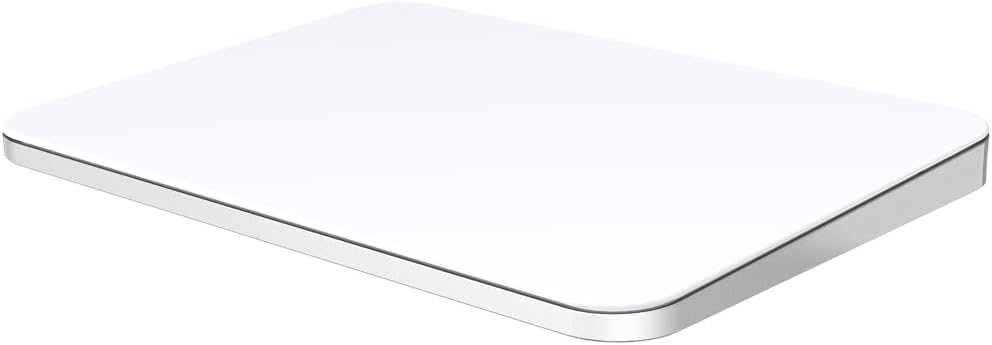
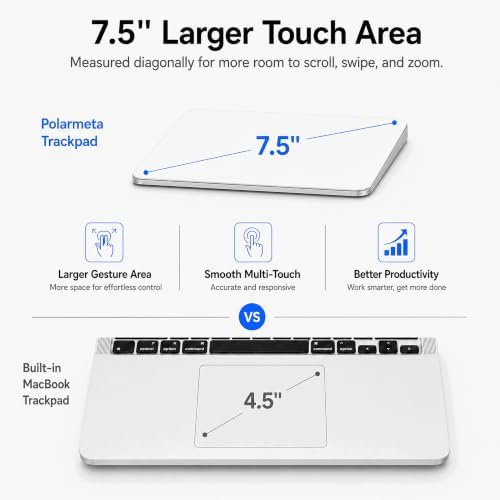
The POLARMETA Wireless Trackpad is one of them, and on paper the pitch is simple. You get a 7.5-inch frosted glass touch surface, native multi-touch gesture support on macOS and Windows 10 and 11, a 2.4GHz USB receiver instead of Bluetooth, and a $59.99 price that undercuts Apple’s Magic Trackpad by more than half.
POLARMETA sent me a sample to review, but what follows is my own read on it. I’ve weighed it against what the wider market, the competing trackpads, and the customer reviews on its own listing are saying.
The short version: it delivers most of what it promises, and one thing it doesn’t advertise surprised me more than the spec sheet did. It also has rough edges that its 3.8-star Amazon average is quietly telling you about. Those are worth understanding before you spend the money.
What I Liked
Full Native Gestures on Both macOS and Windows
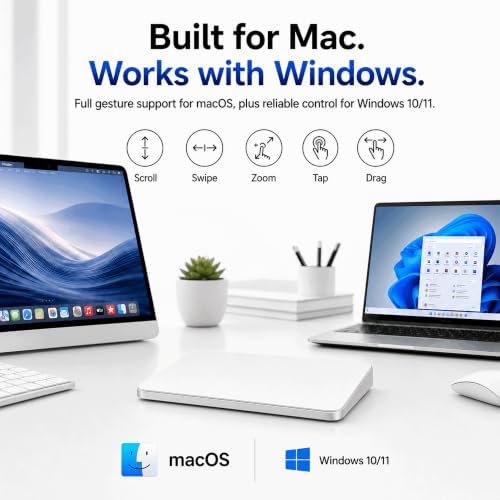
This is the part that matters most, and it’s the part POLARMETA gets right. Both operating systems recognize the trackpad as a precision touchpad immediately, which means the full gesture set works without installing anything.
Two-finger scrolling, pinch to zoom, three-finger swipe, tapping and dragging are all live the moment the cursor appears. That distinction matters more than it sounds. Plenty of budget trackpads are Windows-first and quietly drop pinch-to-zoom and multi-finger gestures the second you plug them into a Mac, leaving you with a pad that scrolls and clicks and little else.
It’s genuinely compatible with Windows 10 and Windows 11 in the way the operating system expects, so cursor navigation and gesture settings live in the normal system panels. The same is true across Apple’s lineup, from a MacBook Air to an iMac to a Mac mini.
I also found it works on Linux, which POLARMETA doesn’t advertise anywhere on the listing. That’s a real bonus rather than a headline feature, but if you keep a Linux box on the desk it’s one less peripheral to worry about. If you’d rather have those gestures built into the keyboard itself, the Clevetura CLVX 1 Mac Keyboard turns every key into part of the touch surface, though it leans heavily toward Mac users.
True Plug and Play With No Drivers or Software
There’s no pairing step, no companion app, and no driver download. You push the USB dongle into any free USB 3.0 port and the cursor starts moving.
POLARMETA includes an L-shaped adapter alongside the receiver, which sounds like a throwaway accessory until you’re plugging something into the back of a Mac mini or a Thunderbolt dock without a cable jutting out into the wall. It’s a small but genuinely thoughtful inclusion.
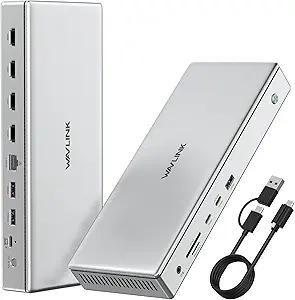
Skipping Bluetooth also means skipping Bluetooth’s failure modes. There’s no re-pairing dance after a reboot and no connection dropping mid-scroll. Wireless connectivity here is as boring as it should be: as long as the receiver is in a port, you’re connected. If your desk already routes everything through a hub, the WAVLINK Pro Docking Station can host the dongle while driving up to four 4K displays from a single USB-C cable.
A Frosted Glass Surface That Feels Smooth and Precise
The 7.5 inches of frosted glass gives you real room to work. The glide is smooth, the tracking is responsive enough that I never fought it in daily use, and scrolling feels effortless.
On an ultrawide monitor the size pays off. You can cross the entire screen without repositioning your hand, which is exactly where a smaller laptop trackpad starts to annoy you.
The wide, flat surface also puts your hand in a more natural position than a computer mouse does. The wrist fatigue that normally builds up over a long day simply didn’t show up. That’s the thing I didn’t expect to matter as much as it did. The comfort upgrade pairs nicely with a keyboard chosen the same way, and the YUNZII B87 Wireless Mechanical Keyboard delivers premium typing sound and feel for under $80.
A Clickable Surface That Feels Uniform Everywhere
The entire pad is clickable, not just the bottom edge. You can press at the corners, along the sides, or dead center and get the same response.
Anyone who has used an older laptop touchpad with a dead zone up top will appreciate how consistent this feels. Tap-to-click is enabled out of the box on macOS, so you can ignore the physical click entirely if you prefer.
About a Week of Battery Life With USB-C Charging
The 900mAh battery is rated for roughly seven days of typical use per charge and refills over USB-C in about two hours. You can keep using it while it charges, so there’s no downtime.
The included USB cable is USB-A to Type-C, which also lets you run it as a wired trackpad indefinitely if the battery ever dies at an inconvenient moment.
Slim Enough to Travel With, and It Stays Put
The aluminum body is thin and light enough to drop into a bag. That makes it a far more civilized option than a mouse on a plane tray table or a cramped coffee shop table, and it pairs nicely with a compact computer keyboard if you’re building a portable desk setup.
On the desk, non-slip pads at the corners and center keep it planted. You have to deliberately shove it to move it, so it won’t creep around while you’re pushing against it.
What Needs Improvement
The Physical Click Is Louder Than I Expected
The click is on the loud side. If you like an audible, mechanical click that’s a feature rather than a flaw, but in a quiet office, a shared room, or on a call it gets conspicuous fast.
The fix is easy. Switch to tap-to-click in your settings, and on macOS the tap gesture is already on by default. You still shouldn’t have to work around the primary button on a pointing device.
Cursor Precision Drops Off at the Extreme Edges
If you drift all the way out to the outer margin of the glass, tracking gets noticeably less reliable than it is across the middle of the pad.
In practice you rarely work out there, and the touch surface is large enough that you have plenty of usable area. It’s still a real limitation, and worth knowing if you spend time in the far corners of a big display.
A Slight Latency Gap Against Apple’s Magic Trackpad
Put this next to an Apple trackpad and it isn’t quite at that level. There’s a small amount of added latency you can perceive, and there’s no Force Touch haptic engine.
That means no adjustable click firmness and no pressure-sensitive Force Click actions that macOS layers on top of Apple’s own hardware. For the money the gap is far narrower than the price difference suggests. It is there, though, and if you’ve spent years on Apple’s pad you will feel it.
You Are Tied to the 2.4GHz Dongle and a USB Port
Ditching Bluetooth buys reliability, and it costs flexibility. The receiver permanently occupies a USB port, and if the dongle is lost or damaged the trackpad won’t work wirelessly at all.
There’s no multi-device pairing either. Moving it between your Macs and your Windows laptop means physically moving the dongle each time, which is trivial once a day and tedious if you’re hopping back and forth.
Build Quality Splits Opinion Among Amazon Buyers
I should be straight about this. My sample has been solid, but the listing sits at 3.8 stars across 76 ratings, and 15% of those are one-star.
Amazon’s own summary of the customer reviews notes that buyers “have mixed opinions about the trackpad’s build quality, with some praising its construction while others find it feels cheap,” and that Mac compatibility draws mixed feedback too. That spread points to more unit-to-unit variance than you’d get from Apple. It’s the main reason I’ve held the score where I have.
How It Compares to the Apple Magic Trackpad
The Apple Magic Trackpad is the benchmark, and it earns that. It runs $129 for the white model and $149 for the black one, wraps an edge-to-edge glass surface around a Force Touch haptic engine, and goes weeks between charges.
Independent testing at Level1Techs clocked its latency below 10ms and noted that it resumes from sleep “without a hitch.” Inside macOS and iPadOS, nothing else comes close. If you want the most responsive pointing device Apple makes, it isn’t the Magic Mouse — it’s this.
Its weakness is the one POLARMETA is built to exploit: Windows. Getting the full gesture set out of a Magic Trackpad on a PC means leaning on the open-source mac-precision-touchpad driver or Apple’s own Boot Camp package, and that package has a reputation.
The BootCampDrivers forum warns that Apple’s Windows Precision Touchpad driver adds three- and four-finger gestures but introduces a tap-to-click delay of roughly 300ms that one user called “extremely frustrating,” with two-finger scrolling turning slow and finicky. If your desk holds both a Mac and a Dell or similar Windows laptop, the $60 pad that works natively on both is solving a problem the $129 pad doesn’t.
The other budget trackpads each give something up. The Logitech T650 has a glass surface and gets called “just one step below the Magic Trackpad” by people who’ve used it, but it never implemented Windows Precision Touchpad, so its gestures depend on Logitech’s software rather than the operating system.
The Keymecher Mano 603 is one of the cheapest pads you can buy for PC laptops and desktops, but on macOS it drops to scrolling and clicking with no pinch-to-zoom. It’s wired-only with no haptics, and one reviewer found clicking and dragging on it “a little troublesome.” At the top of the third-party pile, HyperSpace’s Trackpad Pro matches Apple’s $129.99 price and adds programmable corners, but it’s Windows-first with macOS support still only planned.
It’s worth saying that Reddit is not sold on this category at all. In r/mac, the standing advice on third-party pads is blunt: “go for even a used Magic Trackpad II over any third party options. The difference in quality and gesture recognition is so night and day!”
That skepticism is aimed at the category rather than at POLARMETA specifically, since no product-specific threads exist yet. It’s still the prevailing wind this trackpad is flying into, and a fair warning if a Magic Trackpad 2 is your standard.
Final Verdict
The POLARMETA Wireless Trackpad does what it sets out to do. It works on both Mac and Windows with the full gesture set intact, it’s genuinely plug and play, the battery holds up for about a week, and the build quality is reasonable for the money.
The 7.5-inch glass surface is comfortable enough that it took away the wrist fatigue I get from a mouse. For some people that alone justifies a spot on the desk next to the keyboard.
It is not going to replace an Apple Magic Trackpad, and I’d be doing you a disservice to pretend otherwise. There’s a perceptible latency gap, no Force Touch haptics, a click louder than it needs to be, and enough one-star customer reviews on the listing to suggest quality control isn’t airtight.
That’s why this lands at 3.3 out of 5 rather than higher. It’s a conditional recommendation, not a blanket one.
The price is doing a lot of work here, though. At $59.99 against Apple’s $129, you’re paying less than half for a wireless trackpad that gets you most of the way there, and it beats Apple outright on the one thing Apple handles worst: working properly on a Windows desktop computer, with no driver fight.
If you live on one platform and already own Apple’s pad, stay where you are. If you cross between macOS and Windows every day, this is the more practical tool, and it’s worth checking out.
Specifications
| Brand | POLARMETA |
| Connectivity | 2.4GHz USB Receiver (Wireless, not Bluetooth) |
| Compatibility | macOS, Windows 10/11 (also works on Linux) |
| Surface | 7.5-inch Frosted Glass Multi-Touch |
| Battery | 900mAh Rechargeable |
| Battery Life | Up to about 7 days per charge |
| Charging | USB-C, about 2 hours, usable while charging |
| Gestures | Two-finger scroll, pinch-to-zoom, three-finger swipe, tap, drag |
| Click | Full-surface physical click plus tap-to-click |
| Material | Slim aluminum body |
| In the Box | Trackpad, 2.4G dongle, L-shaped adapter, USB-A to USB-C cable, manual |
| ASIN | B0FQV99FYC |
Frequently Asked Questions
Does the POLARMETA Wireless Trackpad work with Windows?
Yes. Windows 10 and 11 recognize it as a precision touchpad immediately, so the full native gesture set — two-finger scrolling, pinch to zoom, three- and four-finger swipes, tap and drag — works without installing any drivers or software.
Is it Bluetooth?
No. It connects through a dedicated 2.4GHz USB receiver rather than Bluetooth. That means no pairing and no dropped connections, but the dongle does occupy a USB port and you cannot pair the trackpad to more than one computer at a time.
How long does the battery last?
The 900mAh battery is rated for roughly seven days of typical daily use per charge and recharges over USB-C in about two hours. You can keep using the trackpad while it charges, and the included USB-A to USB-C cable also lets you run it as a wired trackpad.
Is it as good as the Apple Magic Trackpad?
Not quite. There is a slight but perceptible latency gap, and there is no Force Touch haptic engine, so you lose adjustable click firmness and Force Click. For roughly half the price it gets impressively close, and it beats the Magic Trackpad on Windows, where Apple needs third-party or Boot Camp drivers to expose full gestures.
Does it work on Linux?
Yes. Linux is not listed anywhere on the product page, but the trackpad works there with basic gesture support — an undocumented bonus rather than a supported feature.
Can I use it while it is charging?
Yes. It works over the USB-A to USB-C cable as a wired trackpad while charging, so there is no downtime waiting for it to top up.
What are the disadvantages of using a trackpad instead of a mouse?
A trackpad gives up the pointing precision a mouse offers for tasks like gaming or detailed photo retouching, and it adds a little latency. What you gain is a much richer gesture vocabulary and a flatter, more neutral hand position that many people find easier on the wrist over a long day.
Ready to Buy?
POLARMETA Wireless Trackpad delivers on its promises. If it fits your needs, it's a solid choice you won't regret.
Check Price on Amazon Founder & Product Reviewer at TheReviewRewind
Daniel has tested 400+ products across 20+ categories through hands-on, real-world testing. Every review includes video documentation and standardized scoring criteria. His reviews appear as Amazon shoppable videos and here on TheReviewRewind.
We earn a commission if you make a purchase, at no extra cost to you. This does not influence our ratings or recommendations. Full disclosure
Looking for more options? See all our Computers reviews.
Related Reviews