WAVLINK Pro Docking Station vs iVANKY FusionDock Pro 2: Best Mac Dock Compared


Quick Decision
Pick the tradeoff that matters most.

Hands-on tested
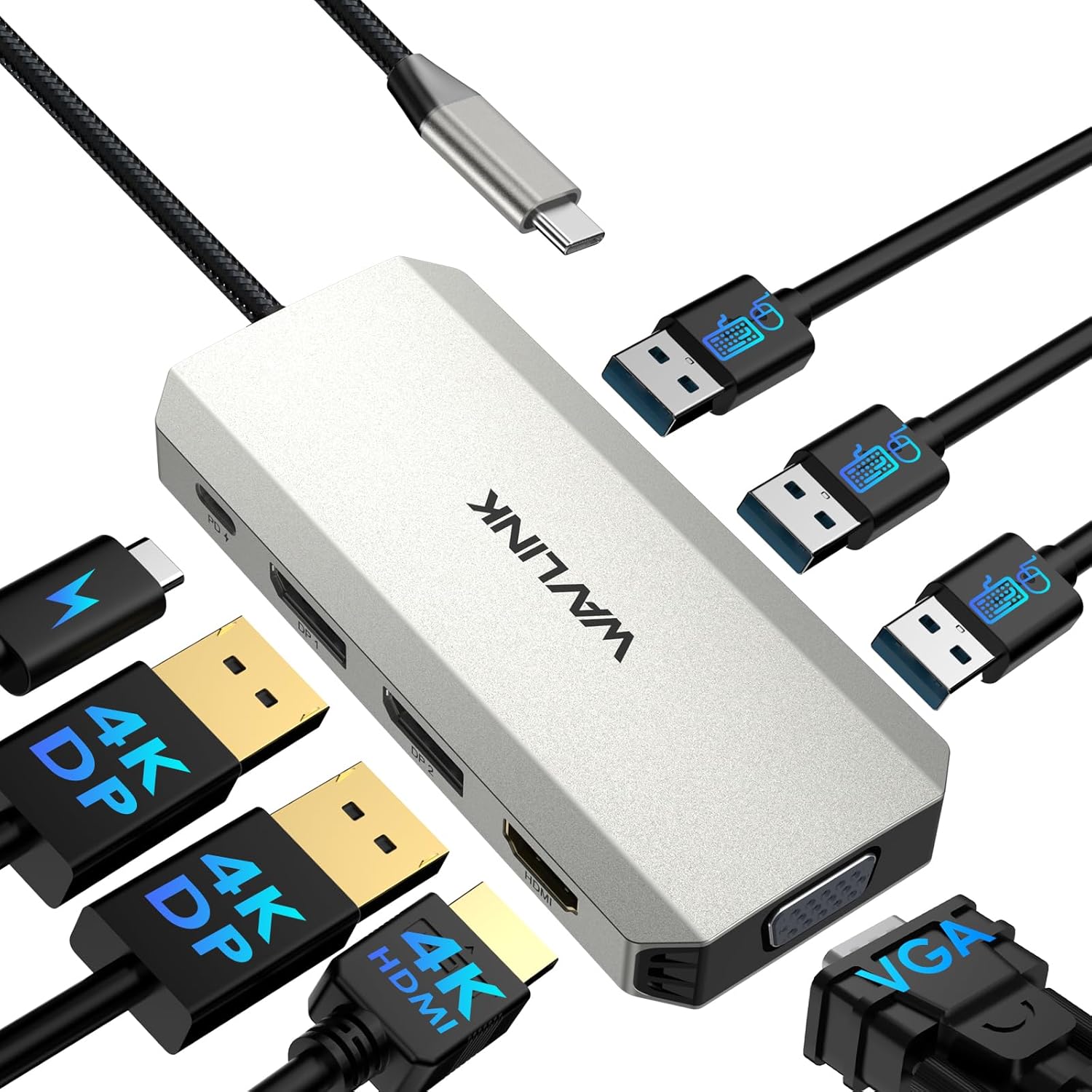
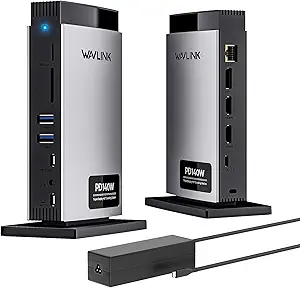
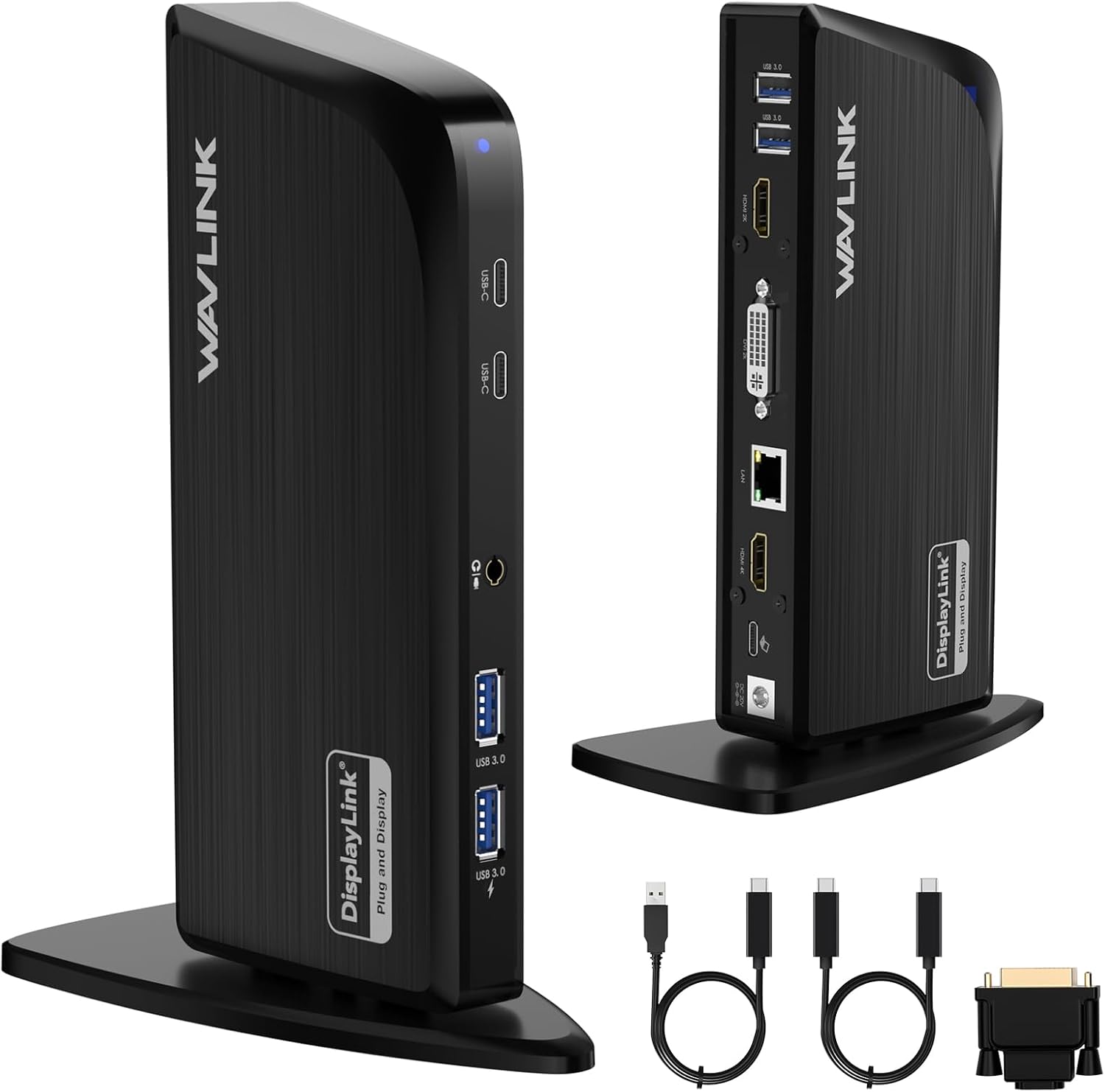
WAVLINK Pro Docking Station Quad 4K Displays
Pick the WAVLINK Pro if you want quad‑4K monitor support and all‑in‑one desk connectivity from a single USB‑C port on a Mac that does not have Thunderbolt.
Hands-on tested
iVANKY FusionDock Pro 2
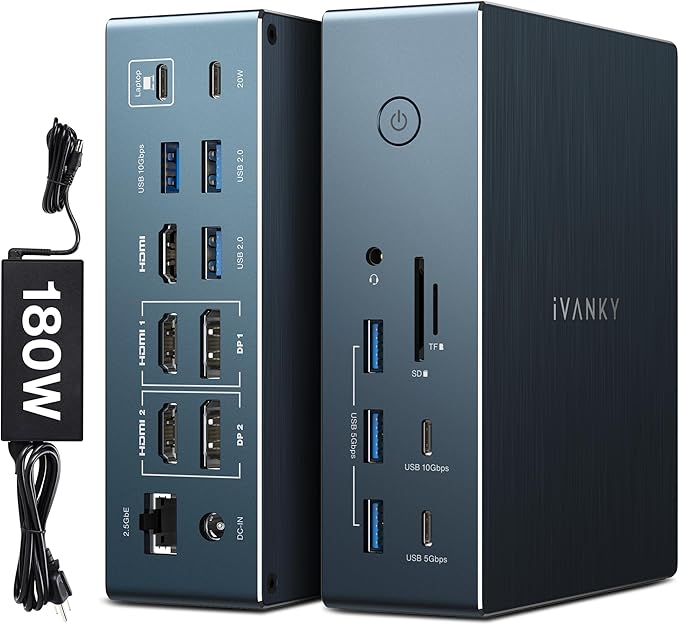
Pick the iVANKY FusionDock if you prefer a more premium‑feeling 20‑port dock focused on triple 4K displays, faster networking, and cross‑platform setups from a single USB‑C cable.
Hands-On Review Videos

WAVLINK Pro Docking Station Quad 4K Displays Review: Quad 4K for Mac Users
WAVLINK Pro Docking Station Quad 4K Displays

iVANKY FusionDock Pro 2 Review: 20-in-1 DisplayLink Dock for Triple 4K Monitors
iVANKY FusionDock Pro 2
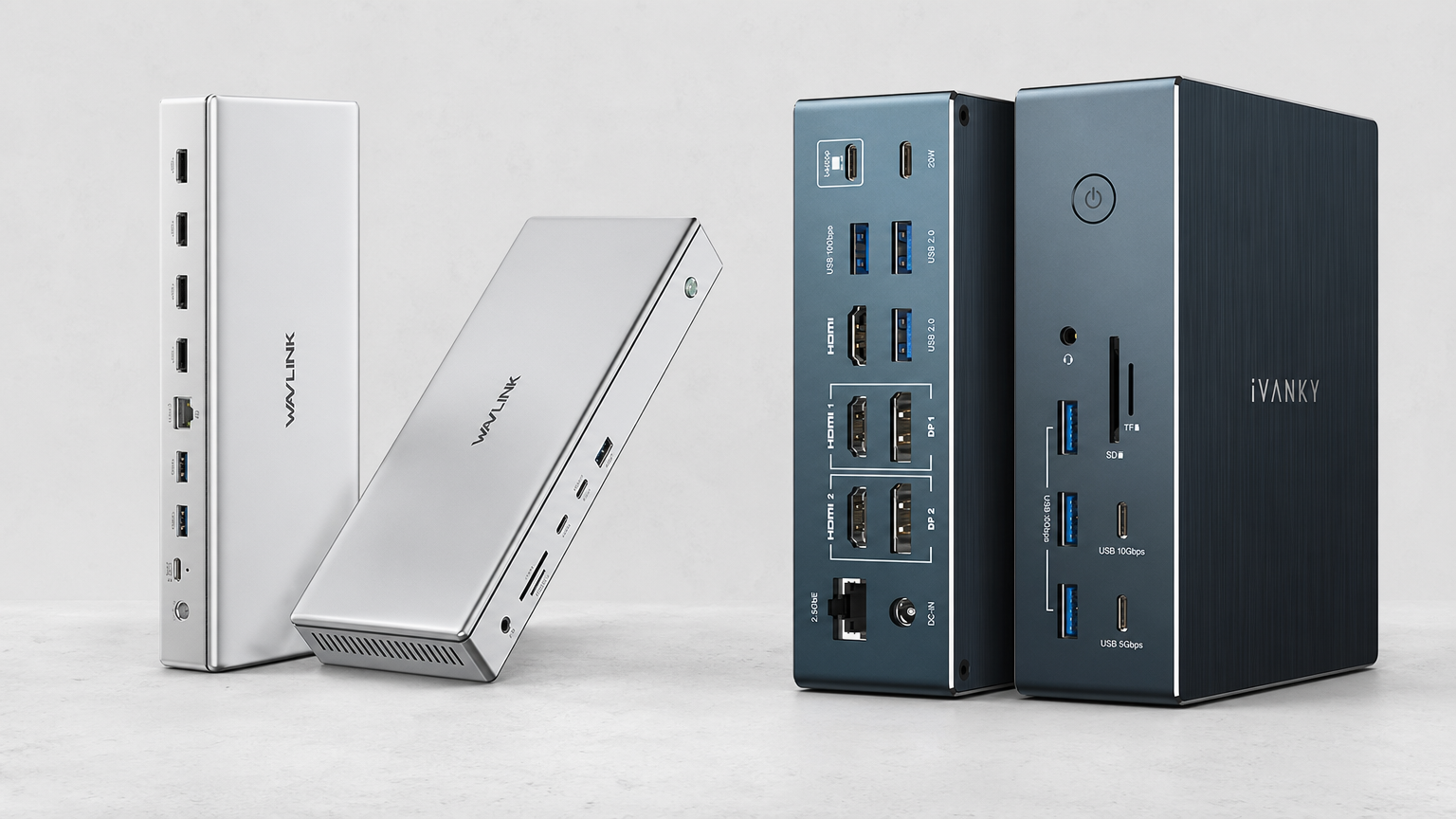
Choosing between the WAVLINK Pro and the iVANKY FusionDock comes down to how many 4K monitors you actually need and how demanding your desk setup is. Both are USB‑C DisplayLink docks built for MacBook multi‑monitor work, but they emphasize different tradeoffs around display count, port density, and SD card speed.
The WAVLINK leans into quad‑4K output, UHS‑II card readers, and 100W charging for a fixed desk. The iVANKY pushes harder on 20‑port connectivity, 2.5 GbE, and triple‑4K versatility across Macs and PCs.
At-a-Glance Comparison Table
If you want a snapshot of where each dock fits before diving into details, this table focuses on use case, setup, and the main compromise you accept with each one.
| Product | Best for | Primary use case | Key feature | Compatibility/setup | Portability | Price/value | Main drawback |
|---|---|---|---|---|---|---|---|
| WAVLINK Pro Docking Station Quad 4K Displays | Mac users who need three or four external monitors from a single USB‑C connection | Building a permanent multi‑monitor desk for trading, coding, or content work | Quad 4K HDMI display support with all‑in‑one USB‑C expansion | Works with Macs and Windows over USB‑C but requires installing the DisplayLink driver, and it cannot pass HDCP‑protected streaming content | Desk‑first dock in an aluminum chassis, better for staying put than for travel | Described as an 18‑in‑1 quad‑monitor hub that can replace several separate adapters | Needs drivers, has USB‑C bandwidth limits at 10 Gb, and will not play DRM‑protected video like Netflix on attached screens |
| iVANKY FusionDock Pro 2 | Content creators and developers needing triple 4K monitors from one cable | One‑cable MacBook desk with 20 ports, triple 4K, and wired 2.5 GbE | Triple 4K displays plus 20 ports of connectivity and 2.5 GbE | Cross‑platform USB‑C DisplayLink dock that works across Macs and other laptops but still needs the DisplayLink driver installed | Solid metal desktop dock with a large external power brick, not ideal for frequent travel | Positioned as a premium 20‑in‑1 dock with 180W power, triple‑4K support, and three charge‑capable USB‑C ports | UHS‑I SD reader only, still needs DisplayLink, uses a big power brick, and its 96W laptop charging falls just short of some high‑end MacBook specs |
Who Should Buy Each One?
Both docks can turn a MacBook into a multi‑monitor workstation, but they suit different desk builds and priorities.
WAVLINK Pro Docking Station Quad 4K Displays: For maximum monitors and all‑in‑one desks
Choose the WAVLINK Pro if your main goal is to run three or four external displays from a single USB‑C port on a Mac. It is especially well suited to permanent home or office desks where you rarely move the dock.
It shines for traders, developers, and coders who live in multi‑window workflows across several monitors. It also works nicely for content creators who want fast SD card readers plus plenty of USB ports alongside those displays.
Pick it if you want one box to handle displays, data, Ethernet, audio, and laptop charging so your MacBook becomes a true desktop replacement. Remote workers building a dedicated MacBook Air or Pro desk will get the most value.
Skip it if you insist on plug‑and‑play monitors with no driver installs. You should also avoid it if you stream Netflix or other DRM‑protected content on external monitors, or if you move large files between drives while driving multiple screens.
iVANKY FusionDock Pro 2: For triple‑4K creators and mixed‑OS desks
Choose the FusionDock Pro 2 if you need triple 4K displays more than you need four and want a dock that can clean up a crowded desk for content creation or software development. It is an easy fit if you run multiple IDEs, timelines, or browser windows at once.
It is also a strong pick for remote workers who want a one‑cable connection to 20 ports, wired 2.5 GbE, and solid charging. MacBook Air owners, non‑Thunderbolt laptops, and mixed‑OS households benefit from its cross‑platform DisplayLink design.
Skip it if you already have Thunderbolt 4 or 5 and want driver‑free displays instead of DisplayLink. It is also not ideal if you only need dual monitors, care a lot about fast SD transfers, or want a travel‑light setup.
Key Differences That Matter
Once you know your monitor needs and how permanent your desk will be, a few core differences make the decision much clearer.
1. Display count and resolution
The WAVLINK Pro is built to push up to four 4K displays over HDMI from a single USB‑C connection, including on limited M‑series Macs. In our testing it drives up to four external displays at high refresh rates, which is rare given its port count and feature set.
The iVANKY FusionDock focuses on triple 4K support instead. Manufacturer and customer evidence both point to three external displays at 3840×2160 60 Hz after installing the DisplayLink driver.
In practice, pick WAVLINK if you truly need four independent 4K monitors for trading walls or data‑heavy dashboards. If three 4K screens cover your workflow, iVANKY’s triple‑display design is usually plenty and comes with other perks.
2. Port layout and connectivity
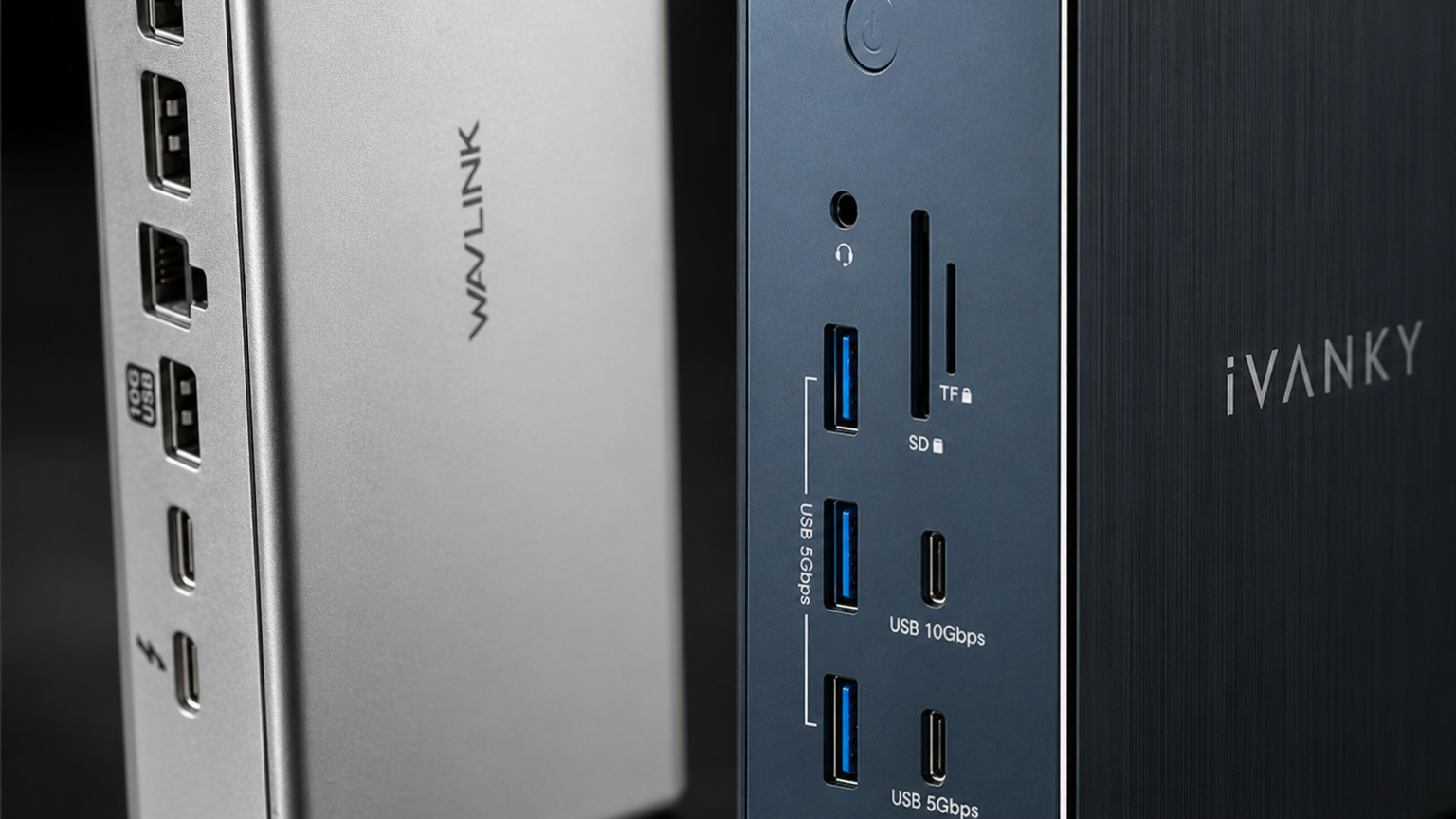
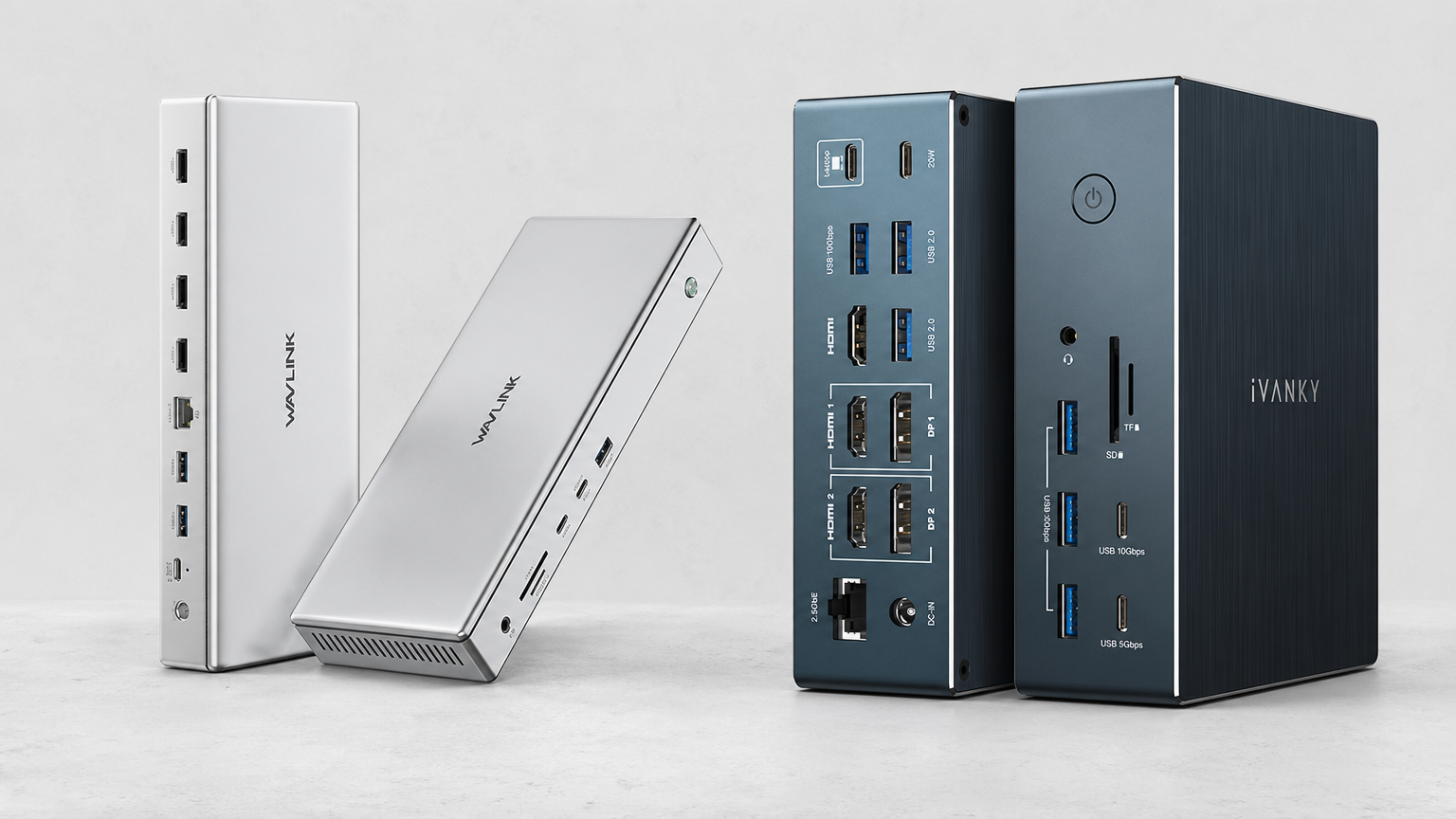
The WAVLINK Pro acts as an 18‑in‑1 hub with USB‑C, several USB‑A ports, 2.5G Ethernet, audio, and SD/TF 4.0 slots, plus four HDMI outputs. We’ve confirmed 100W power delivery and 10G USB on this dock, which reinforces its role as an all‑rounder desktop hub.
The FusionDock Pro 2 steps that up to 20 total ports, adding more USB‑C and USB‑A lines across modern standards plus three HDMI 2.0 and two DisplayPort 1.2 outputs. Evidence also highlights 2.5 GbE, which will matter if you want faster‑than‑Gigabit wired networking.
If you juggle lots of drives, accessories, and network‑heavy tasks, the iVANKY’s port density and faster Ethernet are real advantages. If you mainly care about four HDMI outputs plus a strong SD reader, WAVLINK’s layout is already generous.
3. SD card and creator workflows
For photographers and video editors, the WAVLINK Pro’s SD and microSD slots are a highlight. We’ve measured UHS‑II SD 4.0 support up to around 312 MB/s, faster than the card reader built into many MacBook Pros.
The FusionDock Pro 2 only offers UHS‑I SD speeds, topping out at around 104 MB/s. We flag this as a limitation if you depend on fast SD transfers.
So if your workflow includes frequent large RAW imports or 4K footage from SD cards, WAVLINK is the more creator‑friendly choice. If you mostly edit from NVMe or USB‑C drives and use SD rarely, iVANKY’s slower reader is easier to live with.
4. Charging and power
The WAVLINK Pro offers 100W power delivery charging to your laptop, which is enough to cover most MacBook Air and Pro configurations comfortably. It also pairs that with 10 Gbps USB and fast card readers, but it still runs over a 10 Gb USB‑C connection so total bandwidth is shared.
The FusionDock Pro 2 ships with a 180W power adapter and can charge laptops up to 100W through the upstream USB‑C port, plus USB‑C devices up to 20W from a PD port. In our testing, 96W laptop charging falls slightly short of some high‑end MacBook requirements.
On balance, both docks can act as your main laptop charger for most MacBooks, though very power‑hungry models may still prefer their original brick. The iVANKY’s extra power budget also supports three USB‑C ports that can all be used for charging accessories.
5. Setup, drivers, and streaming limitations
Both docks rely on DisplayLink, which means you must install a driver on macOS or Windows before multi‑monitor output works. For the WAVLINK Pro, we and other expert sources have found that this DisplayLink layer also means HDCP‑protected streaming content from services like Netflix may not play correctly.
The FusionDock Pro 2 likewise requires the DisplayLink driver to unlock triple 4K at 60 Hz. We specifically call out that it is not the right pick if you prefer a driver‑free Thunderbolt solution.
If you want something that just works over Thunderbolt with no drivers, neither dock is ideal. If you are comfortable installing a driver for big multi‑monitor gains, both become much more attractive.
Product Deep Dives
Once you have a sense of which feature set fits, it helps to see how each dock behaves as the anchor of a real desk.
WAVLINK Pro Docking Station Quad 4K Displays
The WAVLINK Pro is positioned as an 18‑in‑1 quad‑monitor USB‑C dock aimed squarely at Mac users who have hit Apple’s built‑in display limits. It can support up to four 4K displays over HDMI on compatible Macs and Windows laptops, turning a single USB‑C port into a full desktop.
Our review highlights its quad 4K HDMI support and all‑in‑one USB‑C expansion, with a wide range of ports including DisplayPort, HDMI, 2.5G Ethernet, multiple USB‑C and USB‑A, SD card, audio, and a 100W PD charging port. That makes it especially compelling if you want one dock to handle displays, networking, storage, and charging.
Build quality is another strong point. The dock uses a premium aluminum chassis, and expert dimensions put it at about 9.5 x 3.9 x 1.3 inches, which looks at home under a monitor or beside a MacBook stand.
For creators, the SD and microSD card readers stand out because they support UHS‑II SD 4.0 at up to around 312 MB/s, outpacing the built‑in reader in many MacBook Pros. That alone can save several minutes on big card offloads each day.
The tradeoffs sit mostly around DisplayLink and bandwidth. You must install the DisplayLink driver on your Mac, and because the dock uses DisplayLink, it does not support HDCP‑protected streaming content from services such as Netflix and Prime Video.
We’ve also found that it runs over a 10 Gb USB‑C link, so you share that bandwidth between multiple displays and 10 Gbps USB ports. Power users shifting large files between external drives while pushing several monitors may feel that limit.
Overall, the WAVLINK Pro is best treated as a semi‑permanent dock for Mac power users who live on external displays and can accept DisplayLink’s driver and streaming quirks. Remote workers, traders, and developers with dense multi‑monitor layouts are exactly who it targets.
For more detail on how it behaves in real‑world use, see our dedicated WAVLINK Pro Docking Station Quad 4K Displays review.
iVANKY FusionDock Pro 2
The FusionDock Pro 2 takes a slightly different tack, selling itself as a 20‑in‑1 DisplayLink dock for triple 4K monitors and dense desk setups. Our review notes that it can run triple 4K displays from a single USB‑C cable, which is ideal for creative or coding workflows that thrive on three large panels.
On the back you get three HDMI 2.0 and two DisplayPort 1.2 outputs, giving you flexibility to match whatever monitors you already own. The remaining ports add up to 20 connections, including USB‑C 3.2 Gen 2, multiple USB‑C and USB‑A 3.2 Gen 1, and USB‑A 2.0 for legacy peripherals.
Networking and power are also strong suits. The dock features 2.5 Gbps Ethernet for faster wired connections and ships with a 180W power adapter, allowing up to 100W laptop charging plus up to 20W for USB‑C devices on its PD port.
Build quality matches its premium positioning, with a solid metal enclosure that looks and feels more like a small desktop appliance than a travel hub. We also emphasize cross‑platform compatibility, making it a good option for mixed‑OS households or people who swap between Macs and other laptops.
On the downside, you again have to install the DisplayLink driver, which some users prefer to avoid in favor of native Thunderbolt docks. The SD card slot is limited to UHS‑I speeds around 104 MB/s, which we flag as a real compromise for anyone relying on SD for big media transfers.
The power supply is a large external brick, and while the dock can deliver up to 100W to laptops, we’ve found that 96W charging falls slightly short of some high‑end MacBook Pro requirements. This is not a deal‑breaker for most users but is worth knowing if you run a fully loaded machine at sustained heavy loads.
Despite those caveats, in our hands‑on use the iVANKY FusionDock Pro 2 has earned a place as one of the strongest docks we’ve paired with a high‑end MacBook Pro M‑series setup, handling demanding multi‑monitor workloads without complaint. That lines up with its pitch as a high‑end desk anchor rather than a casual travel dongle.
You can dive into more port‑by‑port impressions in our full iVANKY FusionDock Pro 2 review.
What Buyers Should Know Before Choosing
Real‑world owner feedback and testing surface a few practical notes that can shape your decision.
For the WAVLINK Pro, buyers consistently treat it as a way to overcome Mac display limits and consolidate multiple adapters. It’s an 18‑in‑1 quad‑monitor dock with 100W PD, 2.5G Ethernet, 10G USB, SD/TF 4.0, and audio, and our hands‑on testing backs up its all‑in‑one desk role.
Its SD and microSD card readers are faster than the ones in many MacBook Pros, which matters if photo or video work is your main job. At the same time, in our testing the DisplayLink layer means HDCP‑protected streaming from Netflix and similar services may not play correctly.
Our “not ideal for” notes also highlight that users who refuse to install drivers or who regularly move large files between external drives while driving multiple displays may find its 10 Gb USB‑C bandwidth limiting. It is best for desk‑bound, monitor‑heavy workflows rather than mobile or ultra‑high‑bandwidth use.
On the iVANKY side, it’s a truly single‑cable solution with 20 ports, triple 4K, and 2.5 GbE. After working with it ourselves, we’ve found it handles everything we expect from a premium desk dock without needing to swap to another solution.
However, we flag several caveats: the SD reader is UHS‑I only, there is a large power brick, and its 96W laptop charging can fall slightly short of some higher‑end MacBook specs. It also still depends on DisplayLink drivers and is not ideal if you already have Thunderbolt 4/5 machines and want a truly driver‑free dock.
In short, both products deliver on multi‑monitor MacBook docking, but you should be comfortable installing DisplayLink and accepting its streaming quirks. After that, your main decision is whether quad 4K plus faster SD (WAVLINK) or triple 4K plus extra ports and 2.5 GbE (iVANKY) better matches your day‑to‑day work.
Final Check
Check current Amazon pricing
Open the Amazon listings, compare the current price, and choose the option that matches your use case, budget, and meeting workflow.
WAVLINK Pro Docking Station Quad 4K Displays
- Quad 4K displays from a single USB-C
- Fast UHS-II SD and microSD card readers
- Great for fixed multi-monitor MacBook desks
 Check on Amazon
iVANKY FusionDock Pro 2
- Triple 4K displays plus 20 total ports
- 2.5 GbE and 180W power adapter
- Better fit for mixed-OS multi-monitor setups
Check on Amazon
Frequently Asked Questions
Does wavlink have DisplayLink?
Yes, the WAVLINK Pro uses DisplayLink technology for its multi‑monitor output. It relies on a DisplayLink driver on your Mac or Windows laptop to enable its quad‑display setup.
What country is wavlink from?
The available product and review evidence here focuses on how the WAVLINK Pro behaves as a dock rather than corporate details like headquarters. For brand‑origin information, it is safer to check WAVLINK’s own “About” page or corporate profiles directly.
How to use wavlink docking station?
To use the WAVLINK Pro, connect the included USB‑C cable from the dock to your Mac or Windows laptop, install the required DisplayLink driver, then attach your monitors, Ethernet, and USB peripherals. Once the driver is active, your system can extend across up to four 4K HDMI displays while the dock also delivers power, networking, audio, and fast SD card access.
What is the Ivanky FusionDock Max 2?
This comparison focuses on the FusionDock Pro 2, but iVANKY’s FusionDock Max 2 is described by the company as a next‑generation dock built for MacBook power users, with triple displays and high‑wattage charging. If you are considering both, treat the Max 2 as a higher‑end sibling to the Pro 2 with a stronger emphasis on bandwidth and power delivery.
What are the best docking stations for laptops?
The “best” dock depends on your laptop and workload, but both products here are strong options if you need multiple 4K monitors from a USB‑C MacBook or non‑Thunderbolt laptop. The WAVLINK Pro suits users who want quad 4K plus fast SD, while the iVANKY FusionDock fits those who value triple 4K, 20 ports, and 2.5 GbE networking.
What is the best Thunderbolt dock?
Neither of these models is a native Thunderbolt dock, because both rely on DisplayLink over USB‑C for their multi‑monitor output. If you prefer a true Thunderbolt 4 or 5 dock with driver‑free displays, you should look at other products designed specifically around Thunderbolt rather than DisplayLink.
What is the best docking station for a MacBook Air?
For a MacBook Air, pick based on how many external displays you actually plan to run. If two or three 4K screens are enough, the iVANKY FusionDock is tailored to MacBook Air and non‑Thunderbolt machines and brings 20 ports plus 2.5 GbE. If you envision three or four external monitors plus heavy SD‑card use, the WAVLINK Pro is more appropriate, as it targets Mac users needing up to four displays and faster SD transfers at a fixed desk. In both cases, you will need to install the DisplayLink driver on your MacBook Air.
What is the best brand for docking stations?
Brand “best” is subjective, but in this match‑up WAVLINK focuses on value‑oriented, feature‑dense docks like the WAVLINK Pro, while iVANKY aims at more premium, metal‑chassis solutions such as the FusionDock Pro 2. Your choice should hinge more on port layout, display needs, and driver preferences than on the logo alone.
Founder & Product Reviewer at TheReviewRewind
Daniel has tested 400+ products across 20+ categories through hands-on, real-world testing. Every review includes video documentation and standardized scoring criteria. His reviews appear as Amazon shoppable videos and here on TheReviewRewind.
We earn a commission if you make a purchase, at no extra cost to you. This does not influence our ratings or recommendations. Full disclosure
Related Reviews